
How to Use Free TiviMate on Smart TV
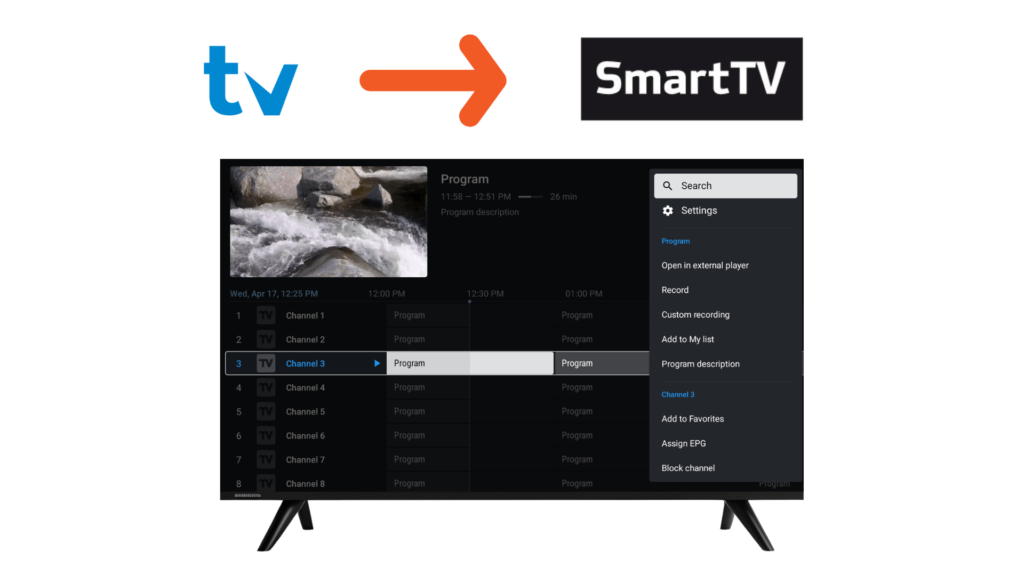
TiviMate IPTV Player is designed mainly for Android TV devices, but many users want to use TiviMate on Smart TVs such as Samsung, LG, and other brands. In this guide, you’ll learn how to use TiviMate on Smart TV, which Smart TVs are supported, and the best alternatives when direct installation is not possible.
⚠️ Important: TiviMate is an IPTV player only. It does not provide channels, playlists, or subscriptions.
BEFORE YOU START (IMPORTANT)
TiviMate cannot be installed directly on most non-Android Smart TVs.
Your setup depends on your Smart TV operating system.
Smart TVs that work with TiviMate
- Android TV–based Smart TVs
- Google TV–based Smart TVs
Smart TVs that do NOT support direct installation
- Samsung Smart TV (Tizen OS)
- LG Smart TV (webOS)
Don’t worry — you can still use TiviMate on these TVs using alternative methods explained below.
OPTION 1: INSTALL TIVIMATE ON ANDROID TV–BASED SMART TV (BEST METHOD)
If your Smart TV runs Android TV or Google TV, follow these steps.
Step 1: Open Google Play Store
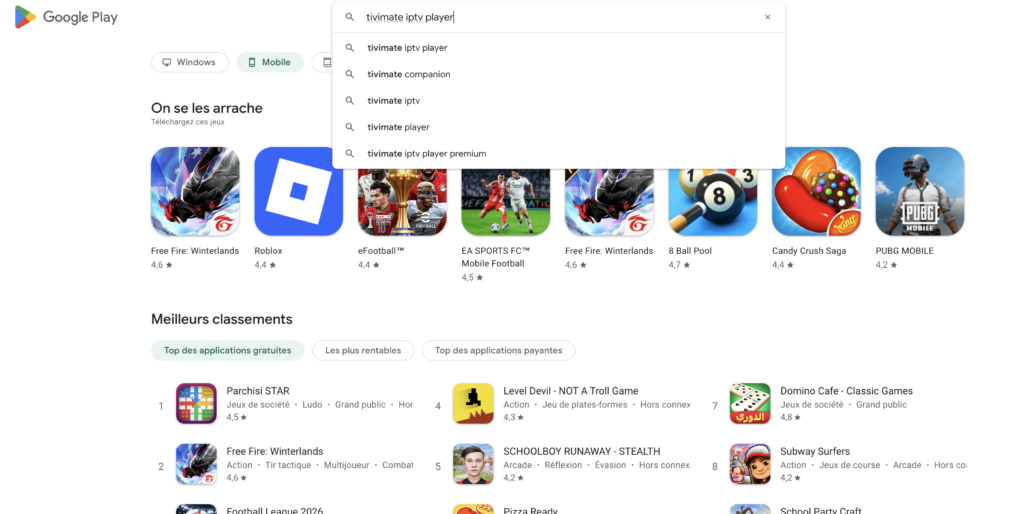
From your Smart TV home screen, open the Google Play Store.
Step 2: Search for TiviMate
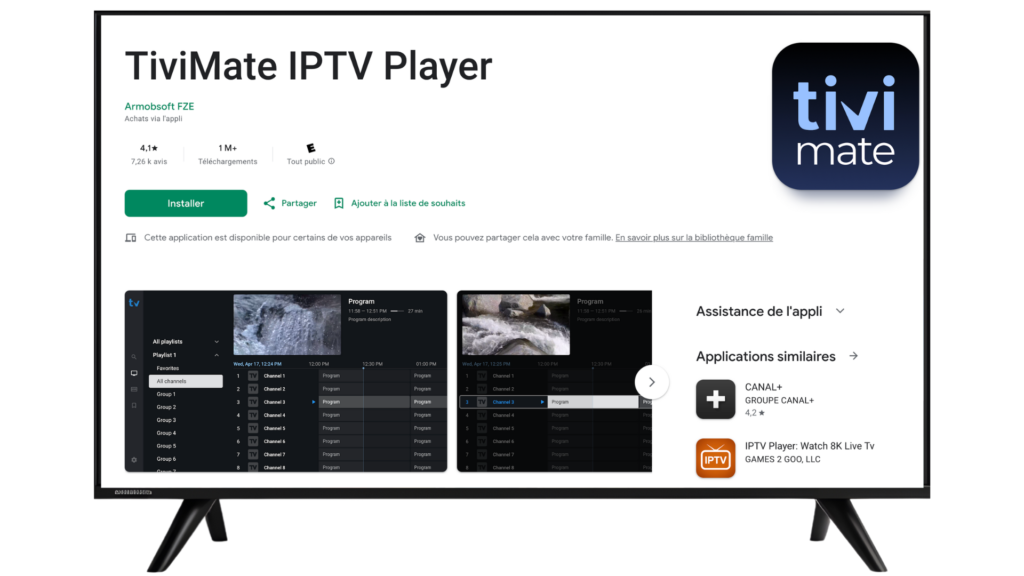
Search for TiviMate IPTV Player using the on-screen keyboard or voice search.
Step 3: Install and Open
Click Install, wait for installation to finish, then open the app.
Step 4: Add Your IPTV Playlist
1 – Select Add Playlist
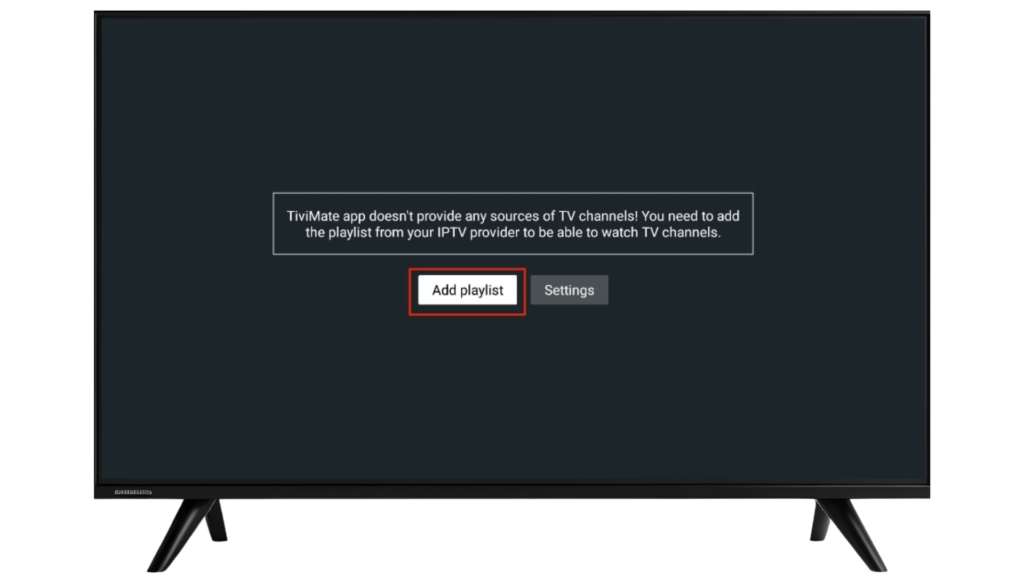
2 – Choose M3U Playlist or Xtream Codes Login
3 – Enter your IPTV details
4 – Load channels
OPTION 2: USE TIVIMATE ON SAMSUNG & LG SMART TV (ALTERNATIVE METHODS)
If your Smart TV does not run Android TV, you cannot install TiviMate directly. Use one of the methods below.
Method A: Use an External Streaming Device (RECOMMENDED)
Connect one of the following to your Smart TV:
- Android TV Box
- Amazon Firestick
- Google Chromecast with Google TV
Then install TiviMate on that device and watch on your Smart TV.
Method B: Screen Casting (Limited Use)
You can cast content from:
- Android phone
- Android TV device
⚠️ Casting may reduce quality and performance.
ENABLE EPG (TV GUIDE)
To activate the TV Guide in TiviMate:
1 – Open Settings
1 – Select EPG
1 – Update or refresh EPG data
TIVIMATE TIPS FOR SMART TV USERS
Best Performance Tips
- Use wired Ethernet when possible
- Keep the app updated
- Close unused background apps
Better Navigation
- Use favorites
- Hide unused channels
- Customize layout and themes