
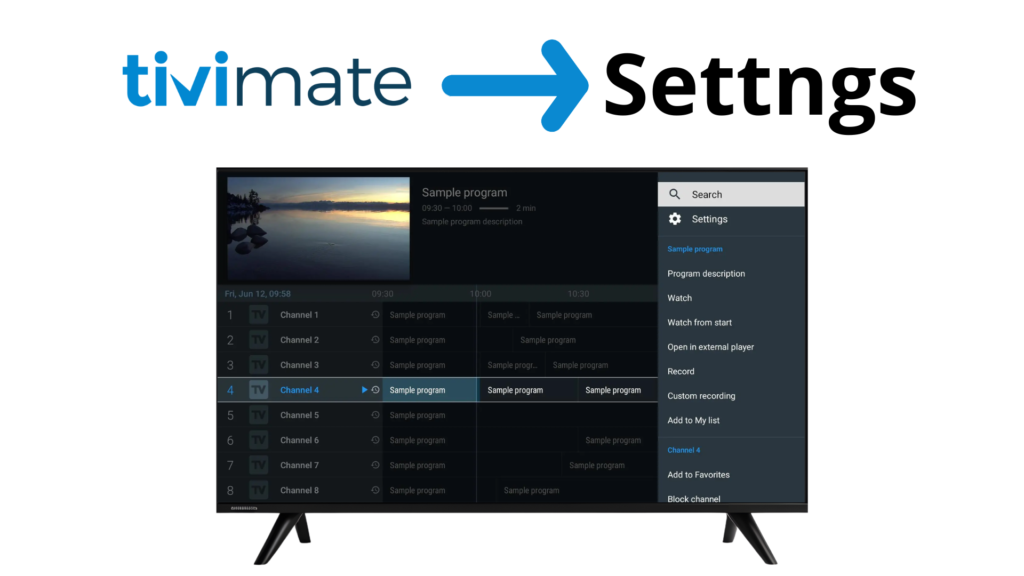
TiviMate IPTV Player offers many powerful settings that can greatly improve performance, stability, and usability. Choosing the best TiviMate settings helps reduce buffering, improves navigation, and creates a more TV-like experience.
In this guide, you’ll learn the best settings for TiviMate IPTV Player, recommended for Android TV, Firestick, and similar devices.
⚠️ Important: TiviMate is an IPTV player only. It does not provide channels, playlists, or IPTV subscriptions.
BEFORE YOU START
For best results, make sure:
- TiviMate is updated to the latest version
- Your internet connection is stable
- Your IPTV playlist (M3U or Xtream Codes) is working properly
BEST PLAYBACK SETTINGS (MOST IMPORTANT)
Go to: Settings → Playback
Recommended Settings:
- Video Decoder: Hardware
- Audio Decoder: Hardware
- Buffer Size: Medium (or Large if buffering)
- AFR (Auto Frame Rate): ON (Android TV only)
- Enable Timeshift: OFF (unless required)
✔ Improves playback stability
✔ Reduces buffering and lag
BEST EPG SETTINGS
Go to: Settings → EPG
Recommended Settings:
- Update EPG on App Start: ON
- Update Interval: 24 hours
- Past Days to Keep EPG: 1–2 days
- Time Offset: 0 (adjust only if needed)
✔ Faster EPG loading
✔ Correct program timing
BEST PLAYLIST SETTINGS
Go to: Settings → Playlists
Recommended Settings:
- Update Playlist on App Start: ON
- Channel Sorting: By Name or Category
- Show VOD Separately: ON
- Multiple Playlists: Enabled (if needed)
✔ Cleaner content organization
✔ Faster access to channels
BEST INTERFACE & APPEARANCE SETTINGS
Go to: Settings → Appearance
Recommended Settings:
- Layout: List View (best for TV)
- Show Channel Logos: ON
- Font Size: Medium
- Dark Theme: ON
- Animations: OFF (for better performance)
✔ Smoother navigation
✔ Cleaner TV-style interface
BEST PERFORMANCE SETTINGS (LOW-END DEVICES)
If you are using an older device:
- Disable animations
- Reduce buffer size
- Close background apps
- Use wired Ethernet if possible
✔ Helps prevent freezing and crashes
BEST SETTINGS FOR FIRESTICK USERS
Firestick-specific tips:
- Force close unused apps
- Restart Firestick weekly
- Use 5GHz Wi-Fi if available
- Set buffer size to Large if needed
PTIONAL PREMIUM SETTINGS (IF AVAILABLE)
If premium features are enabled:
- Enable Recording (if supported)
- Enable Multi-view (high-performance devices only)
- Enable Backup & Restore
PTIONAL PREMIUM SETTINGS (IF AVAILABLE)
Still buffering?
✔ Increase buffer size
✔ Check internet speed
✔ Test a different channel
EPG not loading?
✔ Refresh EPG
✔ Check EPG source
App feels slow?
✔ Disable animations
✔ Restart device
ARE THESE SETTINGS SAFE & LEGAL?
Yes. These settings only affect how TiviMate functions as a media player.
TiviMate does not control or provide IPTV content. Users are responsible for their IPTV sources.
Frequently Asked Questions – Best TiviMate Settings
Use hardware decoding, set buffer size to Medium or Large, disable animations, and ensure a stable internet connection.
Yes. Hardware decoding is recommended on most devices as it improves playback performance and reduces CPU load.
No. TiviMate settings only affect playback and interface performance. Stream quality depends on your IPTV source.
Minor adjustments may help. Firestick users should increase buffer size and close background apps, while Android TV users can enable Auto Frame Rate for smoother playback.
FINAL THOUGHTS
Using the best TiviMate settings can significantly improve your IPTV experience. With the right configuration, you’ll enjoy smoother playback, faster navigation, and a cleaner interface across all supported devices.