
How to Use TiviMate on Windows PC
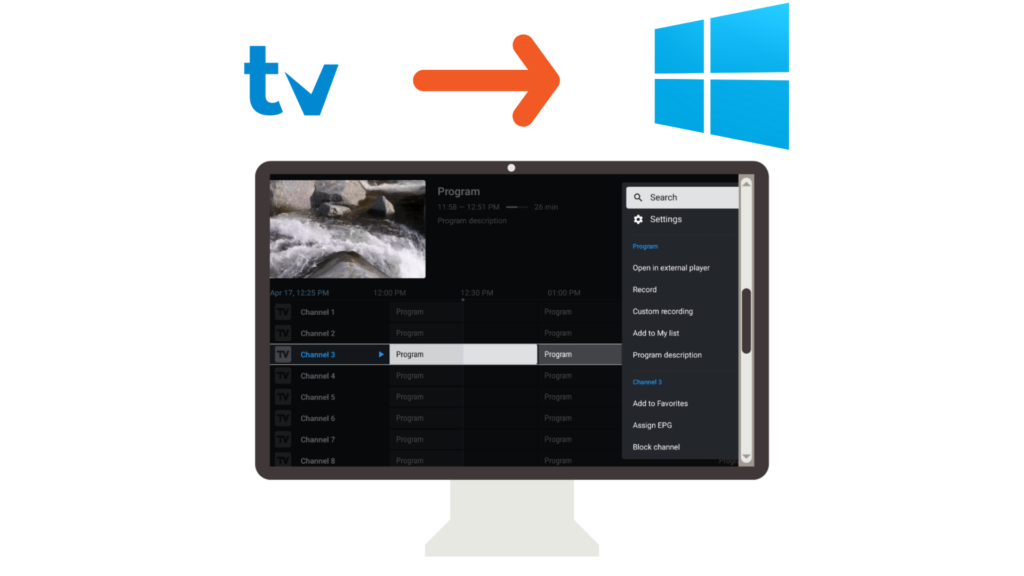
TiviMate IPTV Player is designed for Android TV devices, but many users want to enjoy the same experience on a Windows PC or laptop. While TiviMate does not have an official Windows version, you can still use it smoothly on Windows by running it through an Android emulator.
This guide explains how to install and use TiviMate on Windows PC, step by step.
⚠️ Important: TiviMate is an IPTV player only. It does not provide channels, media, or subscriptions.
REQUIREMENTS
Before starting, make sure you have:
- A Windows 10 or Windows 11 PC
- Stable internet connection
- IPTV playlist (M3U URL or Xtream Codes)
- An Android emulator (explained below)
STEP 1: INSTALL AN ANDROID EMULATOR ON WINDOWS
Since TiviMate is an Android app, you need an emulator to run it on Windows.
Recommended Android emulators:
- BlueStacks
- LDPlayer
- NoxPlayer
These emulators allow you to run Android apps on your PC safely.
STEP 2: INSTALL THE EMULATOR
1. Download the emulator from its official website
2. Run the installer on your PC
3. Complete the setup process
4. Launch the emulator after installation
Sign in with a Google account if prompted
STEP 3: INSTALL TIVIMATE INSIDE THE EMULATOR
Method A: Using Google Play Store (Recommended)
1. Open Google Play Store inside the emulator
2. Search for TiviMate IPTV Player
3. Click Install
4. Wait for installation to complete
Method B: Install via APK File
1. Download the official TiviMate APK
2. Drag and drop the APK into the emulator
3. Complete installation
STEP 4: OPEN TIVIMATE AND ADD PLAYLIST
When you launch TiviMate:
1. Select Add Playlist
2. Choose M3U Playlist or Xtream Codes Login
3. Enter your IPTV details
4. Load channels
STEP 5: ENABLE EPG (TV GUIDE)
To activate the TV guide:
1. Go to Settings
2. Select EPG
3. Update or refresh EPG data
TIVIMATE TIPS FOR WINDOWS PC USERS
Best Performance Tips
- Allocate more RAM/CPU to the emulator
- Close unused background apps
- Use wired internet for better stability
Better Control
- Use keyboard and mouse shortcuts
- Switch emulator to landscape mode
- Enable full-screen mode
COMMON WINDOWS PC ISSUES & FIXES
TiviMate running slow?
- Increase emulator performance settings
- Enable hardware virtualization in BIOS
Channels not loading?
- Check playlist details
- Refresh playlist
Contact your IPTV provider
EPG not working?
Refresh EPG
Verify EPG URL
IS TIVIMATE LEGAL ON WINDOWS PC?
Yes. TiviMate is a legal IPTV player.
It does not host, stream, or sell content. Users are responsible for ensuring their IPTV playlists are legally obtained.
Frequently Asked Questions – TiviMate on Windows PC
No. TiviMate does not have an official Windows version. It can be used on Windows through an Android emulator.
Popular and reliable options include BlueStacks, LDPlayer, and NoxPlayer.
No. TiviMate is an IPTV player only and does not provide channels or subscriptions.
Yes. TiviMate is a legal media player. Users are responsible for ensuring their IPTV playlists are legally obtained.
FINAL THOUGHTS
Although TiviMate does not have a native Windows version, using it through an Android emulator is a reliable solution. With proper setup, you can enjoy the same powerful IPTV player features on your Windows PC as on Android TV devices.